IKEv2 VPN unter Windows einrichten
So richtest du IKEv2 VPN auf Windows ein: PowerShell-Befehle und Schritte über die Benutzeroberfläche, Verschlüsselung mit GCMAES256/SHA384, ECP384, Split-Tunneling und Speichern der Login-Daten

IKEv2 VPN unter Windows mit PowerShell konfigurieren
Dafür müssen einige Befehle in der PowerShell eingegeben werden
$Response = Invoke-WebRequest -UseBasicParsing -Uri https://valid-isrgrootx1.letsencrypt.org
Dieser Befehl regelt das Thema Zertifikate
Danach legen wir die neue Verbindung an
Add-VpnConnection -Name "{VPN_ID}.vpn.how" -ServerAddress "{VPN_ID}.vpn.how" -TunnelType IKEv2 -EncryptionLevel Maximum -AuthenticationMethod EAP -RememberCredential
Dann konfigurieren wir die Verbindung
Set-VpnConnectionIPsecConfiguration -ConnectionName "{VPN_ID}.vpn.how" -AuthenticationTransformConstants GCMAES256 -CipherTransformConstants GCMAES256 -EncryptionMethod GCMAES256 -IntegrityCheckMethod SHA384 -DHGroup ECP384 -PfsGroup ECP384 -Force
Set-VpnConnection -Name "{VPN_ID}.vpn.how" -SplitTunneling $True
Wobei {VPN_ID} die Kennung deines persönlichen VPN-Servers ist
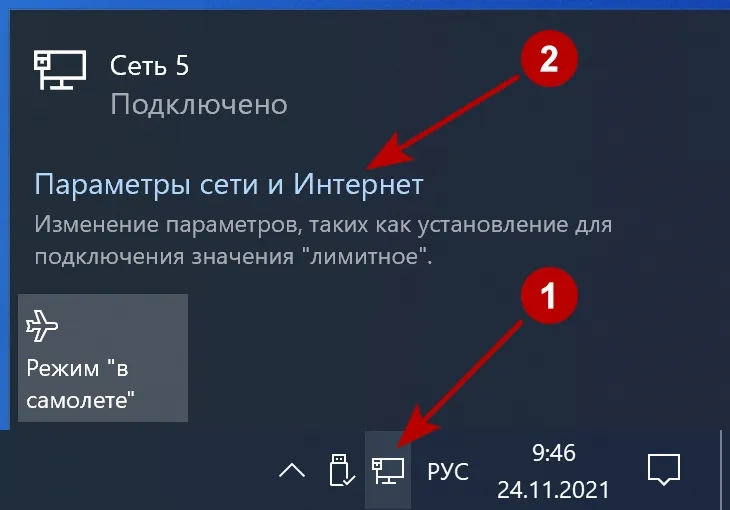
IKEv2 VPN unter Windows über die grafische Oberfläche einrichten
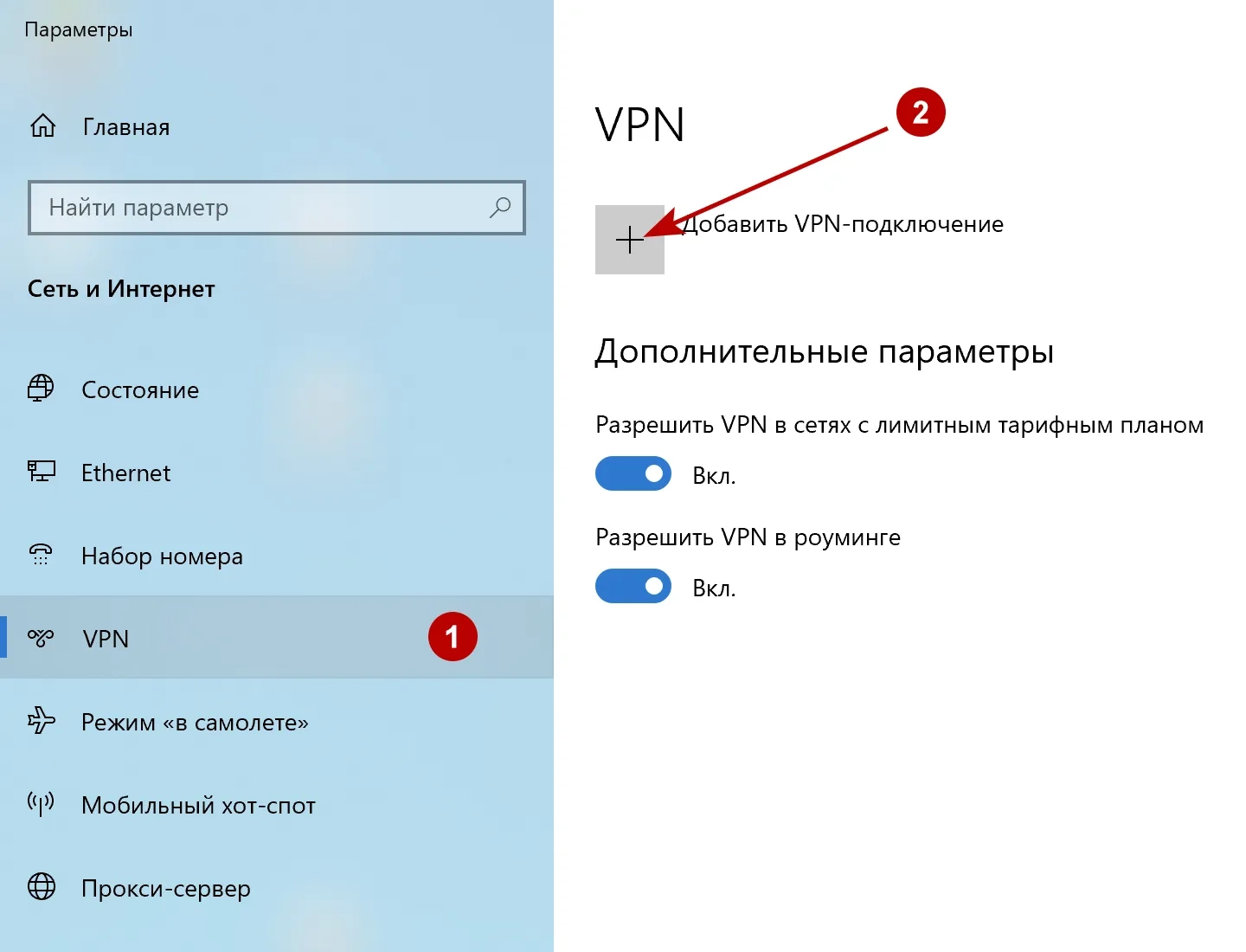
Im VPN-Reiter auf "VPN-Verbindung hinzufügen" klicken.
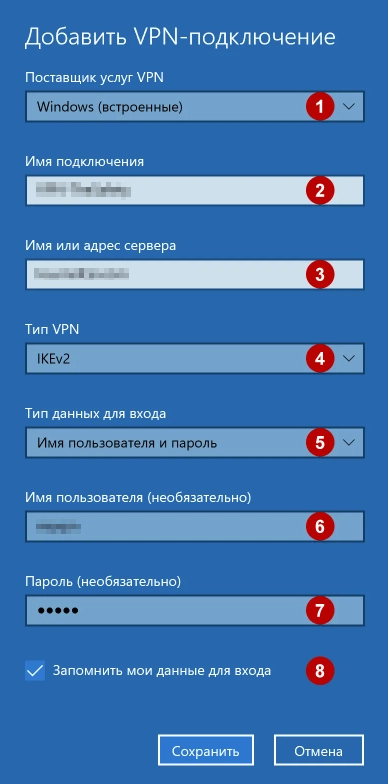
Gib folgende Daten ein:
- Wähle Windows (integriert)
- Beliebiger Verbindungsname
- Adresse des IKEv2 VPN-Servers
- IKEv2 als Verbindungstyp
- Wähle Benutzername und Passwort
- VPN-Benutzername
- VPN-Passwort
- Setze Haken bei „Anmeldedaten speichern“
Verbinde dich mit dem IKEv2 VPN.
Herausgeber: vpn.how