VPN Works on Wi-Fi but Not on Mobile Data: Step-by-Step Troubleshooting
Step-by-step troubleshooting when your VPN connects over Wi-Fi but fails on mobile data: permissions, background restrictions, DNS, protocols, and safe fixes.
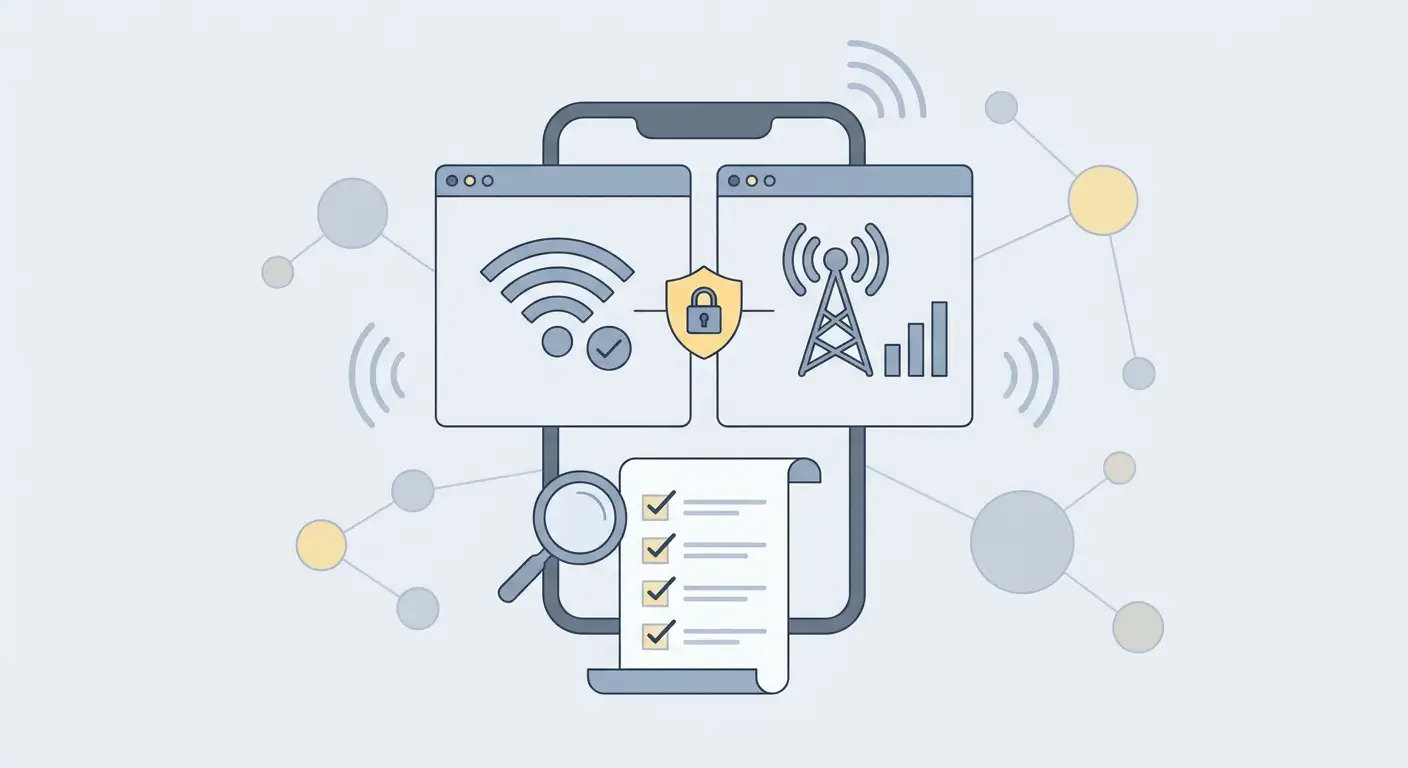
Content of the article
- 1) make sure the issue is with the vpn and not the mobile internet
- 2) permissions and background restrictions: the most common hidden culprit
- 3) network changes and mobile specifics: apn, ipv6, cgnat, and session drops during handovers
- 4) dns issues: connected but websites won’t load
- 5) protocol and port: find options that are more stable on mobile networks
- Checklist: from diagnosis to careful fixes
- Faq: common questions
Quick answer: If your VPN works on Wi-Fi but won’t connect over mobile data, it’s usually due to mobile internet restrictions (APN/network type/IPv6), background limits and app permissions, or incompatible DNS or protocol settings. Start by checking if your phone even detects mobile internet, then rule out VPN app restrictions, test a different protocol/port, and carefully try switching DNS. All steps below are reversible and don’t require disabling TLS, certificate checks, antivirus, or MFA.
1) Make sure the issue is with the VPN and not the mobile internet
Before diving into fixes, it’s important to confirm what’s really broken. Let’s begin with basic checks.
- Check that mobile data works without VPN. Turn off the VPN, try visiting 2–3 different websites or apps. If nothing loads, the problem isn’t with your VPN but with your connection, tariff plan, coverage, or APN settings.
- Compare behavior across network types. If possible, temporarily switch your preferred network (for example, 5G/4G/3G). Sometimes VPNs won’t start on certain network types due to NAT, IPv6, or operator filtering quirks.
- Check if data saver mode is on. Some device skins limit background connections when data saver is enabled, which can prevent the VPN tunnel from establishing.
- Identify the exact scenario: VPN won’t connect at all; connects but no data flows; or only some apps work. These differences matter later for DNS and permission settings.
If you want to see how Android generally displays and manages VPN connections, the official Android documentation is a good reference for terminology and interface behavior: https://source.android.com/docs/core/connect/vpn-ux.
2) Permissions and background restrictions: the most common hidden culprit
When on Wi-Fi, systems tend to be less aggressive about power saving and data limits, but on mobile networks, restrictions are often stricter. That’s why your VPN might fail specifically on mobile data.
What to check in your VPN app settings
- Permission to run in the background. If the app’s background activity is blocked or strict battery limits are enabled, the VPN tunnel might fail to stay connected on mobile networks. A safe fix: set the app to “unrestricted” battery usage, then revert if needed.
- Permission to use mobile data. Some systems let you block an app from using cellular data separately from Wi-Fi. Make sure your VPN client is allowed to use mobile traffic.
- Background data restriction. Remove any restriction on “background data” for the VPN client (and for apps that rely on VPN if needed). This setting is reversible.
- Always-on VPN and blocking connections without VPN. Blocking internet access when the tunnel fails is intentional. Check the connection state and client log first. Do not disable this protection to transmit sensitive data. If a direct-connection test is necessary, close sensitive applications and restore protection immediately afterward.
Sign you’re dealing with a background issue: VPN connects right after opening the app and stays connected while the screen is on, but drops or stops transferring data after a few minutes in your pocket.
3) Network changes and mobile specifics: APN, IPv6, CGNAT, and session drops during handovers
Mobile networks differ technically from Wi-Fi: they use different NAT, often change external IPs, may operate IPv6-only profiles, and switching base stations can break sessions.
- Check your APN (Access Point Name). Some carriers offer multiple APNs (standard, “corporate,” or IPv6-only). If your APN is non-standard or manually changed, your VPN might fail to start. Safe step: take a screenshot of current APN settings and switch to the carrier’s recommended profile; revert if things get worse.
- Check IPv6 impact. IPv6 is more common in mobile networks than home Wi-Fi. Some VPN setups perform poorly in IPv6-only environments or when switching between IPv4 and IPv6. Test by comparing VPN performance on different network types (4G/3G) or with another carrier/location. If your VPN client lets you toggle IPv6 support in the tunnel, try both options and keep the one that works best (always reversible).
- Session drops when switching cells or network modes. If the VPN connects but “dies” when switching from 5G to 4G or during calls/signal loss, that might be expected behavior of a specific protocol or client. Switching to a more network-resilient protocol often helps (see protocols section below).
4) DNS issues: connected but websites won’t load
A common scenario: VPN shows as “connected,” but your apps won’t open websites over mobile internet. This looks like “VPN isn’t working,” but really DNS resolution or DNS routing is broken.
- Compare symptoms: If IP-based services (like a banking app or messenger) work but browsers say “address not found,” it points to DNS issues.
- Check DNS settings in your VPN client. If you manually set DNS servers in your profile, temporarily revert to default or enable the VPN provider’s recommended mode. Revert changes by taking note of originals beforehand.
- Check system Private DNS (if enabled). Sometimes “Private DNS + VPN” on mobile networks causes conflicts. For diagnosis, switch Private DNS to automatic temporarily, then restore it afterward.
For a deeper dive into why DNS and VPN transport clash with network restrictions (including specifics of mobile operators), see this related analysis: vpn.how: VPN connection failures — DNS, transport, and network limits.
5) Protocol and port: find options that are more stable on mobile networks
Just because something works well on Wi-Fi doesn't mean it will on mobile data. Reasons include port/traffic filtering, NAT quirks, and radio instability. The goal is to see if switching protocol or port helps without weakening encryption or risky global tweaks.
- Change the protocol in your VPN service/client. If multiple options exist, try one or two alternatives and compare connection speed, stability when minimizing apps, and performance after switching LTE↔3G. Examples: VLESS + Reality, Hysteria2, AmneziaWG, TrustTunnel. Avoid changing many settings at once — change one and test.
- Check port or transport mode if configurable. Sometimes changing to a more “universal” port within your server/provider’s allowed range helps. Only do this through official server/profile settings to avoid breaking certificate checks or security.
- Consider MTU/fragmentation if your client supports it. Mobile networks sometimes drop large packets. Signs include connection established but some sites freeze. If MTU is adjustable, tweak cautiously and revert if things get worse.
Checklist: from diagnosis to careful fixes
| Step | What to check | How to interpret | Reversible action |
|---|---|---|---|
| 1 | Internet without VPN on mobile data | Nothing loads — issue is not the VPN | Switch network type (4G/3G), check coverage, APN; revert if needed |
| 2 | Background restrictions and battery | VPN disconnects with screen off | Allow background/unrestricted usage for VPN client; roll back if necessary |
| 3 | Mobile data blocked for the app | Works on Wi-Fi, won’t start on LTE | Allow mobile data/background traffic; restore later if needed |
| 4 | DNS conflict (VPN connected, but sites won’t load) | “Address not found” errors, selective failures | Restore default DNS in VPN profile; temporarily set Private DNS to “Auto” |
| 5 | Mobile network specifics (IPv6, handover drops) | Breaks during 5G/4G/3G change or movement | Try a different protocol; if supported, toggle IPv6 in the tunnel |
| 6 | Protocol/port/MTU | Slow connection or frozen traffic | Change protocol or port within your service; cautiously test MTU if available |
FAQ: Common questions
Why does VPN work on Wi-Fi but not on mobile data, even with the same settings?
Wi-Fi and mobile networks differ in routing, NAT, IPv6 availability, power-saving policies, and background traffic restrictions. Mobile connections are more prone to DNS conflicts and instability when switching cells.
Can I just disable battery saver entirely?
It’s better to target adjustments: remove restrictions only for the VPN client (and apps that require constant access). This way, you won’t sacrifice overall battery life and keep control. Changes can always be undone.
VPN connects but apps say “No internet.” What should I do first?
First, distinguish DNS issues from general connection problems. If you see “address not found” errors or only some services work, check DNS in the VPN profile and system Private DNS. Then test changing the protocol.
Do I need to disable certificate checks or TLS to make it work?
No. That’s unsafe and usually not a proper fix. Focus on network-level causes: background restrictions, DNS, protocol/port, APN/IPv6 settings.
If nothing helps, what info should I gather for VPN provider support?
Without sharing secrets: phone model and OS version, carrier and network type (LTE/5G/3G), exact symptoms (won’t connect/connects with no data/drops in background), protocols tested, and whether the issue changes with location or SIM. Avoid sending screenshots containing keys or tokens.
When a personal server makes sense: if you notice issues tied to overloaded shared IPs or unstable exit points, or you need a dedicated IP without “neighbors,” a personal server from your provider can help. vpn.how offers personal VPN servers with dedicated IPs; check the website and user portal for current locations, protocols, prices, and limits. When it won’t fix the problem: if your local mobile network is unstable, APN is misconfigured, the app faces strict background restrictions, or there’s a DNS/Private DNS conflict — you’ll need to resolve these device-side regardless of whose server you use.
Interpreting a DNS test: it usually identifies the resolver, not the packet route. A familiar DNS provider alone does not prove a leak; compare the result with tunnel routing, IPv4/IPv6, and browser DNS-over-HTTPS settings.
Publisher: vpn.how